
R-3X (DJ R3X) Body Logics

Estimated reading time: 7 min

DJ R3X Logic Lights (RX Series) Logic Lights.

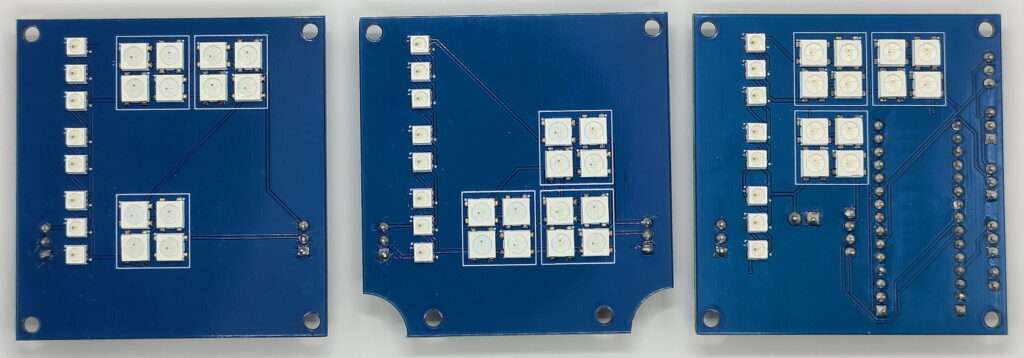
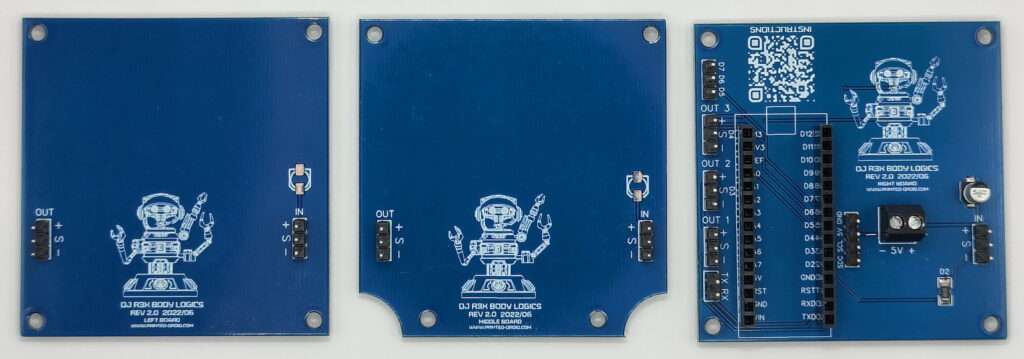
The Logic Lights set consists of 3 circuit boards and is controlled by an ESP32 C3 Mini (older version uses Arduino Nano – Sketch 2.5 Nano).

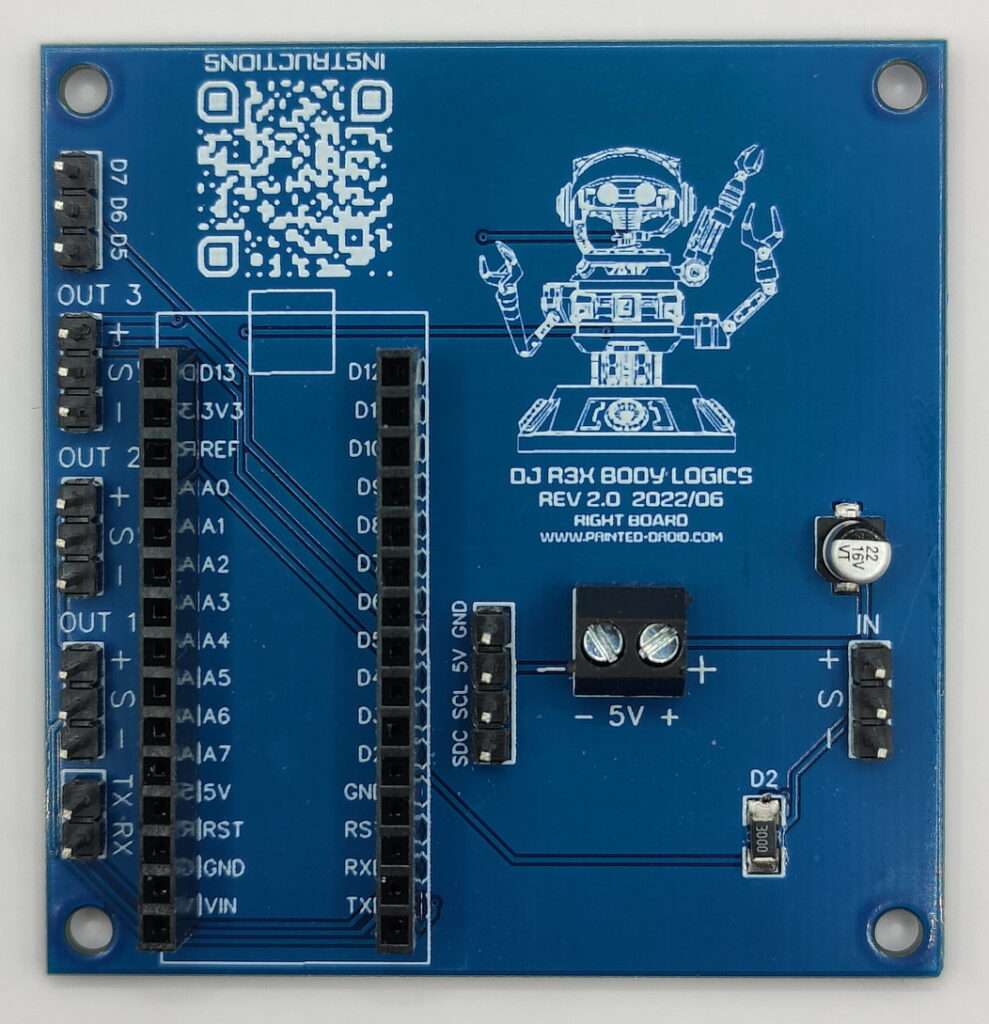
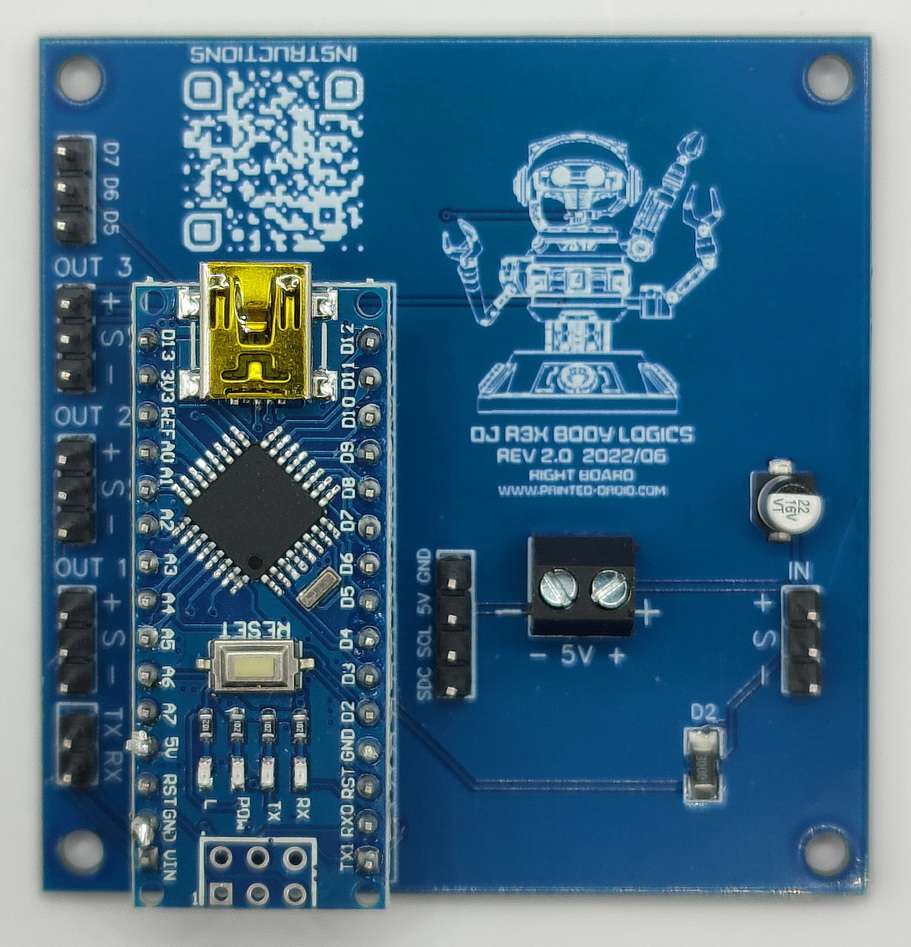
The Arduino ESP (Nano) sits directly on the right logic board.
The board can be controlled serially or with I2C and has 3 more full output pins with 5V, signal and GND.
Furthermore, other pins are brought out.

Pictures below are the “older” Nano boards:

Available at shop.printed-droid.com

Software Guides


DJ REX ESP32 C3 Mini v3.1 Guide

This guide provides full setup and operational instructions for the advanced ESP32-C3 Mini version of the DJ R3X body logic. This version is a significant upgrade over the Nano project, offering a richer feature set, greater stability, and more customization options.


Part 1: Hardware Requirements

  • Main Controller: ESP32-C3 Mini
  • Body LED Panels: 3x panels, each with 20 WS2812B LEDs
  • Eyes & Mouth LEDs: 2x Eye LEDs and 80x Mouth LEDs (WS2812B type)
  • Microphone: I2S MEMS Microphone (e.g., INMP441)
  • Status LED: A standard 3mm or 5mm blue LED

Part 2: Wiring Diagram

Connect the components to the ESP32-C3 Mini pins as defined in the project configuration.

ComponentESP32-C3 Mini PinDescription
Right Body PanelIO3Data In for the right-side LEDs
Middle Body PanelIO4Data In for the middle LEDs
Left Body PanelIO5Data In for the left-side LEDs
Eyes & Mouth LEDsIO6Data In for both Eyes and Mouth LEDs (chained)
MicrophoneIO1Analog audio input
Status LEDIO8Feedback LED

Part 3: Software Setup

  1. Arduino IDE: Ensure you have the Arduino IDE installed with support for ESP32 boards.
  2. Libraries: Install the FastLED library, version 3.9.0 up to 3.9.6. Newer versions may cause issues. The Preferences.h library is included with the ESP32 core.
  3. Upload Code: Upload the complete code for “DJ REX ESP32 C3 Mini v2.1” to your ESP32-C3 Mini.
  4. First Boot: The system runs a startup sequence, and default settings are loaded from flash memory.
  5. Open the Serial Monitor at a baud rate of 115200. You should see the startup message “Printed-Droid DJ Rex v2.2”.
  6. Type help to see a full list of available commands.

Part 4: Features, Usage & Troubleshooting

Demo Mode Features

The advanced demo mode automatically cycles through body patterns, mouth patterns, and eye modes.

  • Smart Pattern Cycling: Body patterns with color options will cycle through several colors before moving to the next pattern.
  • Full Animation: The demo also cycles through different mouth animations and eye color modes, creating a dynamic showcase.
  • State Preservation: When you turn demo mode off, the system automatically reverts to the pattern that was active before demo mode was started.

Usage Examples

  • Quick Start
    • help: Show all commands
    • demo on: Start the full demo mode
    • demotime 20: Change to 20 seconds per major step
  • Advanced Custom Setup
    • S 16: Set to “Custom Block Sequence” pattern
    • eyemode 2: Set eyes to alternate between colors
    • eyecolor 3: Set primary eye color to Warm White
    • eyecolor2 2: Set secondary eye color to Blue
    • mouth 7: Set mouth pattern to “Pulse”
    • mouthsplit 1: Split mouth color Left/Right
    • mouthcolor 2 0: Set mouth colors to Blue and Red
    • save: Save the full configuration
  • Audio Reactive Setup
    • S 15: Set body to “Audio VU Meter”
    • mouth 11: Set mouth to “Audio VU Meter”
    • audiomode 4: Set everything to be audio reactive
    • audiosens 6: Set audio sensitivity to 6/10
    • autogain on: Enable automatic gain control
    • save: Save settings

Troubleshooting

  • LEDs Not Responding:
    • Check the Status LED. A very fast blinking light indicates a system error.
    • Verify your serial monitor connection is set to 115200 baud.
    • Double-check all wiring against the pin diagram.
  • Settings Not Saving:
    • Use the save command after making changes.
    • Use the status command to verify that your settings have been accepted.
    • If issues persist, use reset to clear the flash memory and start fresh.
  • Audio Sync Not Working:
    • Use the audiomode command to ensure the correct parts are set to listen.
    • Check the microphone connection to pin IO1.
    • Adjust sensitivity with audiosens or audiothreshold.

Part 5: Full Serial Command Reference

Body Pattern Commands

  • S <0-16> – Sets the main body pattern. Example: S 1
  • next / prev – Navigates to the next or previous pattern. Example: next

Playlist Commands

  • playlist on / off – Enables or disables the automatic playlist mode. Example: playlist on
  • playlist show – Displays the currently loaded sequence. Example: playlist show
  • playlist <p,d;p,d> – Defines a new playlist. p is the pattern number, d is the duration in seconds. Example: playlist 5,15;12,20;7,10

Eye Commands

  • eyecolor <0-19> – Sets the primary eye color. Example: eyecolor 12
  • eyecolor2 <0-19> – Sets the secondary eye color. Example: eyecolor2 14
  • eyemode <0-2> – Sets the eye animation mode (0=Single Color, 1=Dual Color, 2=Alternating). Example: eyemode 1
  • eyebrightness <50-200> – Sets the eye brightness in percent. Example: eyebrightness 125

Eye Flicker Commands

  • eyeflicker on / off – Toggles the eye flickering effect. Example: eyeflicker on
  • eyeflicker settings – Shows the current flicker configuration. Example: eyeflicker settings
  • eyeflickertime <min> <max> – Sets the random flicker timing in milliseconds. Example: eyeflickertime 200 1500
  • eyestaticbright <0-255> – Sets the brightness when flickering is disabled. Example: eyestaticbright 200

Mouth Commands

  • mouth <0-11> – Sets the mouth animation pattern. Example: mouth 2
  • mouthcolor <0-19> – Sets the primary mouth color. Example: mouthcolor 0
  • mouthcolor2 <0-19> – Sets the secondary mouth color. Example: mouthcolor2 3
  • mouthsplit <0-4> – Sets how two colors are split on the mouth (0=Off, 1=Vertical, 2=Horizontal, 3=Inner/Outer, 4=Random). Example: mouthsplit 1
  • wavespeed <1-10> – Sets the speed for the Wave animation. Example: wavespeed 5
  • pulsespeed <1-10> – Sets the speed for the Pulse animation. Example: pulsespeed 7
  • mouthbrightness <1-255> – Sets the mouth brightness. Example: mouthbrightness 150
  • mouthenable on / off – Enables or disables the mouth LEDs. Example: mouthenable on
  • talkspeed <1-10> – Sets the speed for the Talk animation. Example: talkspeed 8
  • smilewidth <2-10> – Sets the width for the Smile animation. Example: smilewidth 6

Audio Commands

  • audiomode <0-4> – Sets audio routing (0=Off, 1=Mouth Only, 2=Body Sides, 3=Body All, 4=Everything). Example: audiomode 4
  • audiosens <1-10> – Sets audio sensitivity. Example: audiosens 7
  • audiothreshold <50-500> – Sets the audio detection threshold manually. Example: audiothreshold 120
  • autogain on / off – Toggles automatic gain control. Example: autogain on

Random Blocks Configuration

  • blockcolor <0-8> <0-19> – Sets the color for a specific block. Example: blockcolor 0 3
  • blockrate <1-255> – Sets the blink speed for the blocks. Example: blockrate 100
  • sidecolors <0-19> <0-19> <0-19> – Sets the three available colors for the side LEDs. Example: sidecolors 0 15 2
  • sidemode <0-4> – Sets the side LED color mode (0=Random, 1=Cycle, 2-4=Fixed Color). Example: sidemode 1
  • siderate <1-255> – Sets the blink speed for the side LEDs. Example: siderate 150
  • showblocks – Shows the current block color assignments. Example: showblocks

Pattern-Specific Color Commands

  • color <0-19> – Sets the color for the “Solid Color” pattern. Example: color 5
  • solidmode <0-1> – Sets the mode for “Solid Color” (0=Static, 1=Blink). Example: solidmode 1
  • flashcolor <0-19> – Sets the color for the “Solid Flash” pattern. Example: flashcolor 15
  • flashspeed <1-10> – Sets the speed for the “Solid Flash” pattern. Example: flashspeed 7
  • shortcolor <0-19> – Sets the color for the “Short Circuit” pattern. Example: shortcolor 4
  • knightcolor <0-19> – Sets the color for the “Knight Rider” pattern. Example: knightcolor 0
  • breathcolor <0-19> – Sets the color for the “Breathing” pattern. Example: breathcolor 2
  • matrixcolor <0-19> – Sets the color for the “Matrix Rain” pattern. Example: matrixcolor 11
  • strobecolor <0-19> – Sets the color for the “Strobe” pattern. Example: strobecolor 18
  • confetti <0-19> <0-19> – Sets the two colors for the “Confetti” pattern. Example: confetti 0 15

Demo Mode

  • demo on / off – Toggles demo mode. Example: demo on
  • demotime <5-300> – Sets the demo pattern interval in seconds. Example: demotime 30

General Settings

  • brightness <1-255> – Sets the global brightness. Example: brightness 150
  • bodybrightness <50-200> – Sets the body brightness in percent. Example: bodybrightness 100
  • mouthouter <50-200> – Sets the brightness boost for the outer mouth LEDs. Example: mouthouter 120
  • mouthinner <50-200> – Sets the brightness boost for the inner mouth LEDs. Example: mouthinner 180
  • speed <1-255> – Sets the general effect speed. Example: speed 200
  • fade <1-50> – Sets the fade-to-black speed. Example: fade 10
  • sidetime <min> <max> – Sets the min/max timing for side LEDs in milliseconds. Example: sidetime 500 2500
  • blocktime <min> <max> – Sets the min/max timing for blocks in milliseconds. Example: blocktime 200 1500

System Commands

  • save – Saves the current settings to flash memory. Example: save
  • load – Loads the last saved settings from flash memory. Example: load
  • reset – Resets all settings to factory defaults. Example: reset
  • status – Shows a summary of the current settings. Example: status
  • help – Displays this command reference. Example: help
  • saveuser <1-3> – Saves the current configuration to a user preset slot. Example: saveuser 1
  • loaduser <1-3> – Loads a user preset. Example: loaduser 1
  • deleteuser <1-3> – Deletes a user preset. Example: deleteuser 2
  • listpresets – Shows the saved user presets. Example: listpresets

Color Reference

  • 0: Red
  • 1: Green
  • 2: Blue
  • 3: Warm White
  • 4: Yellow
  • 5: Cyan
  • 6: Magenta
  • 7: Orange
  • 8: Purple
  • 9: Pink
  • 10: Black
  • 11: Matrix Green
  • 12: Ice Blue
  • 13: UV Purple
  • 14: Amber
  • 15: Cool White
  • 16: Lime Green
  • 17: Teal
  • 18: Pure White
  • 19: Blue White


DJ R3X – Arduino Nano v2.5.1 Guide

This guide covers the setup and operation for the DJ R3X body logic running on an Arduino Nano. This version (v2.6) focuses on providing deep customization for the “Random Blocks” pattern, allowing for precise control over the color and behavior of every element.


Part 1: Hardware Requirements

  • Main Controller: Arduino Nano
  • Body LED Panels: 3x panels, each with 20 WS2811 LEDs
  • Eyes LEDs: 2x WS2811 LEDs
  • Microphone: A standard 5V analog microphone module.

Part 2: Wiring Diagram

Connect the components to the Arduino Nano pins as defined in the source code.

ComponentArduino Nano PinDescription
Right Body PanelD2Data In for Panel A
Middle Body PanelD3Data In for Panel B
Left Body PanelD4Data In for Panel C
Eyes LEDsD7Data In for the Eye LEDs
MicrophoneA5Analog audio input (MIC_PIN 5)

Part 3: Software Setup

  1. Arduino IDE: Ensure you have the Arduino IDE installed.
  2. Libraries: Install the FastLED library, version 3.9.0 up to 3.9.6. The EEPROM.h library is included with the standard Arduino core.
  3. Upload Code: Upload the DJ_Rex_Nano_v2.5.1.ino sketch to your Arduino Nano.
  4. First Boot: On first boot, default settings are written to the EEPROM. Subsequent changes are saved automatically.

Part 4: Features, Usage & Troubleshooting

Demo Mode Features

Demo mode automatically cycles through all patterns.

  • Smart Cycling: It intelligently cycles through all 10 colors for patterns that support it (Solid Color, Short Circuit, Confetti, Solid Flash) before moving to the next pattern.
  • Configurable Timing: You can set how long each step lasts (5-300 seconds) using the demotime command.
  • Auto-Start: If you save the settings while demo mode is on, it will automatically start on the next boot.
Demo Sequence Example (demotime 10)
  1. Solid Color: Cycles through all 10 colors (Red, Green, Blue…).
  2. Short Circuit: Cycles through all 10 colors.
  3. Confetti: Cycles through color combinations.
  4. Rainbow: Runs for 10 seconds.
  5. …and so on for all other patterns.
  6. Solid Flash: Cycles through all 10 colors.
  7. The sequence then repeats, skipping “LEDs Off”.

Usage Examples

  • Quick Start
    • help: Show all commands
    • demo on: Start demo mode
    • demotime 15: Change to 15 seconds per pattern
  • Custom “Random Blocks” Setup
    • S 1: Set to “Random Blocks” pattern
    • blockcolor 0 4: Set Right-Block1 to Yellow (Color 4)
    • blockcolor 3 2: Set Middle-Block1 to Blue (Color 2)
    • sidecolors 4 2 3: Set side LEDs to use Yellow, Blue, and White
    • sidemode 0: Set side LEDs to pick randomly from the 3 colors
    • save: Save the configuration
  • Audio Reactive Setup
    • S 9: Set to “Audio Sync” pattern
    • audiothreshold 150: Adjust sensitivity (higher is less sensitive)
    • brightness 200: Increase brightness
    • save: Save settings

Troubleshooting

  • LEDs Not Responding:
    • Verify your serial monitor connection is set to 115200 baud.
    • Check all wiring, especially the data pins (D2, D3, D4, D7).
    • Ensure your power supply is sufficient for all LEDs.
  • Settings Not Saving:
    • Use the save command after making changes.
    • Use the status command to verify that your settings have been accepted.
    • If issues persist, use the reset command to clear the EEPROM and start with fresh defaults.
  • Audio Sync Not Working:
    • Check the microphone connection to pin A5.
    • Use the audiothreshold command to adjust sensitivity. Start with a value around 150 and go up or down.

Part 5: Full Serial Command Reference

Pattern Commands

  • S <0-10>: Set pattern.
  • next: Next pattern.
  • prev: Previous pattern.

Random Blocks Configuration

  • blockcolor <0-8> <0-9>: Set specific block color.
  • blockrate <1-255>: Set block blink speed.
  • sidecolors <0-9> <0-9> <0-9>: Set 3 side LED colors.
  • sidemode <0-4>: Set side color mode (0=random, 1=cycle, 2-4=specific).
  • siderate <1-255>: Set side LED blink speed.
  • showblocks: Show current block color assignments.

Flash & Short Circuit Patterns

  • flashcolor <0-9>: Set flash color.
  • flashspeed <1-10>: Set flash speed.
  • shortcolor <0-9>: Set short circuit spark color.

Demo Mode

  • demo on / demo off: Start or stop demo mode.
  • demotime <5-300>: Set demo time in seconds.

Color Commands

  • color <0-10>: Set solid color (10=random).
  • solidmode <0-1>: Set solid mode (0=static, 1=blink/fade).
  • confetti <0-9> <0-9>: Set two colors for confetti pattern.
  • eyecolor <0-9>: Set eye color.

Brightness & Speed

  • brightness <1-255>: Set global brightness.
  • speed <1-255>: Set effect speed.
  • fade <1-50>: Set fade speed.

Timing & Audio

  • sidetime <min> <max>: Set side LED timing in ms.
  • blocktime <min> <max>: Set block timing in ms.
  • audiothreshold <50-500>: Set audio sensitivity.

System Commands

  • save: Save settings to EEPROM.
  • load: Load settings from EEPROM.
  • reset: Reset to default settings.
  • status: Show current settings.
  • help: Show this help menu.


Tags:
Was this article helpful?
Dislike 0 2 of 2 found this article helpful.
Views: 1176
Previous: RX-Series (DJ-R3X)