Current Version (ESP32-C3 Mini)
The current and recommended hardware for the advanced lighting effects is the ESP32-C3 Mini board. This platform enables a wide range of complex, interactive, and customizable animations.
Pinout (ESP32-C3 Mini):
- Main Dome (Ladder Light):
IO5(for 19 LEDs) - Eye 1:
IO6 - Eye 2:
IO7 - Eye 3:
IO10 - Periscope:
IO4 - Control Button:
IO0
Sketch Features (v5.2 and later):
- The provided sketch controls all five light components (Main Dome, 3 Eyes, Periscope).
- It features a sophisticated mode system with an unchangeable “Chopper Default” mode and 5 customizable User Presets.
- Full control is possible via a single pushbutton (short press cycles modes, long press toggles power).
- Advanced configuration is available via the Serial Monitor with a comprehensive command set.
- Includes complex animations, color palettes, smooth transitions, and automatically saves all settings.
Expansion Possibilities: For advanced users who wish to program their own additions, the board still has several free pins available:
- Free GPIO Pins:
IO1,IO2, andIO13are available for general use. - I2C Bus: The I2C interface on
IO8(SDA) andIO9(SCL) is also free.
Here are a few project examples:
- Servos for Movement: Use the
ESP32Servolibrary to connect servo motors to pinsIO1,IO2, orIO13to animate the dome, arms, or other panels. - Sound Effects: Connect a DFPlayer Mini MP3 module to a free pin (like
IO1for serial communication) to play synchronized droid sound effects with the light animations. - OLED Status Display: Add a small SSD1306 OLED display to the I2C bus (
IO8,IO9) to show the current status, active pattern, or even small animations.
Outdated Version (Arduino Nano)
The following information applies to the older, legacy board and is no longer the recommended setup.
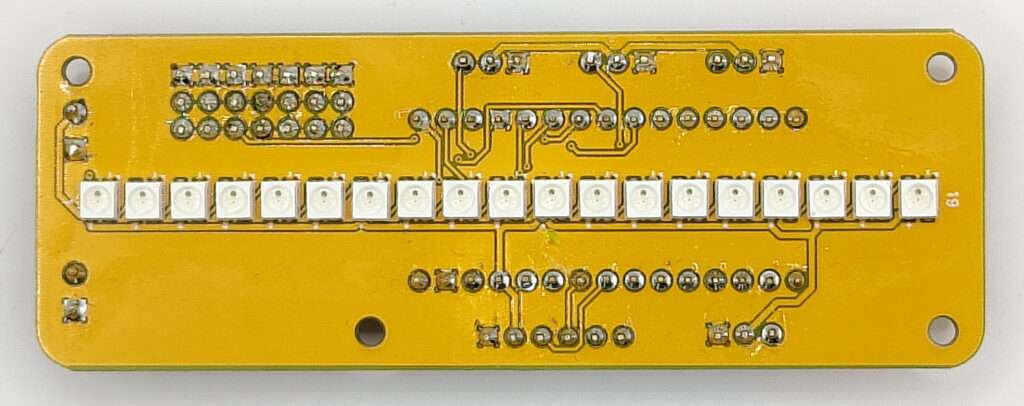
The original, basic sketch for this board only operates the Ladder Light. All other components must be programmed by the user.
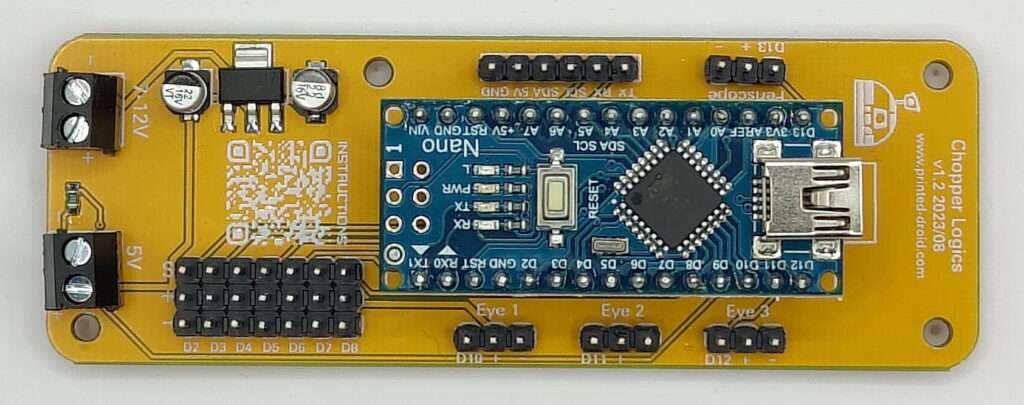
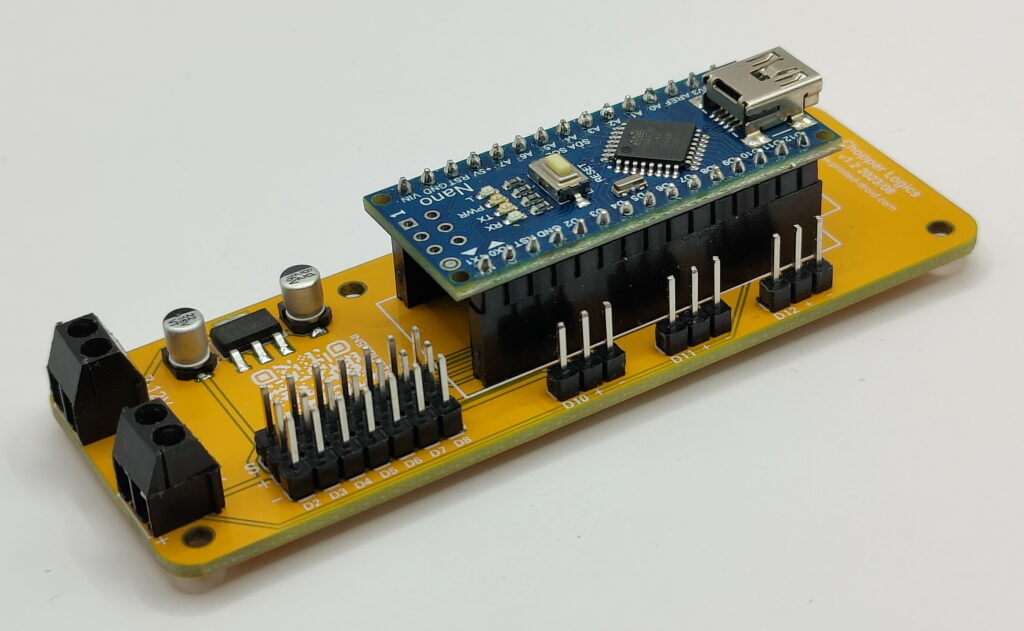
The original board was powered by an Arduino Nano.
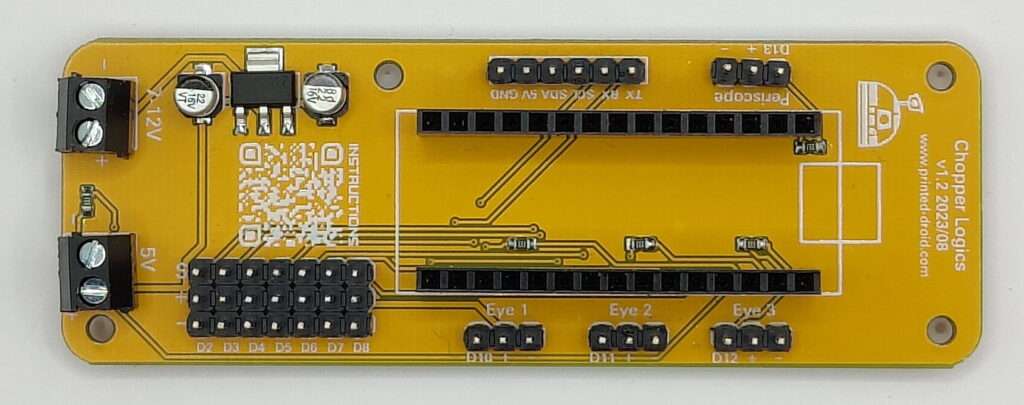
The circuit board has the dimensions 90x32mm.
The power supply is possible via 5V or 7-12V (please use the correct input terminal).
Legacy Pinout:
Ladder Light: D9 (for 19 LEDs)
Eye 1: D10
Eye 2: D11
Eye 3: D12
Periscope: D13
Pins D2-D8 are also available for individual use.
Chopper Dome Logics v5.4 – Software Manual
Welcome to the user manual for the Chopper Dome Logics sketch, version 5.4. This software is designed to bring your 3D-printed C1-10P “Chopper” droid to life with complex, customizable, and interactive lighting effects.
This guide will walk you through the hardware requirements, core concepts, and the full list of commands to get the most out of your droid’s lighting system.
## Hardware Requirements
To use this sketch, you will need the following hardware:
- Microcontroller: An ESP32-C3 Mini (the code is optimized for boards like the LOLIN C3 Mini).
- LED Strips: 5 individually addressable WS2812-type LED strips, connected as follows:
- Main Dome:
IO5 - Eye 1:
IO6 - Eye 2:
IO7 - Eye 3:
IO10 - Periscope:
IO4
- Main Dome:
- Button: A momentary pushbutton or a TTP223 capacitive touch sensor.
- Signal Pin:
IO0 - Other Pin:
GND
- Signal Pin:
## Getting Started
- Upload the Sketch: Upload the
v5.4sketch to your ESP32-C3 Mini board using the Arduino IDE. - Open Serial Monitor: Open the Arduino IDE’s Serial Monitor (
Tools > Serial Monitor). - Set Baud Rate: Make sure the baud rate in the Serial Monitor is set to 115200.
- Set Line Ending: Set the line ending to “Newline”. This ensures your commands are sent correctly.
Upon first boot, the sketch will automatically create and save 5 default “User Presets” to the device’s memory. You can customize and overwrite these at any time.
## Core Concept: The Mode System 💡
The lighting system is built around 6 primary modes you can switch between.
- Default Mode (Mode 0): This is a special, unchangeable mode designed to replicate Chopper’s authentic look from Star Wars Rebels. It features the classic red “chaser light” on the dome and the unique eye animation (yellow main eye, alternating blue secondary eyes). You cannot save over this mode.
- User Presets (Modes 1-5): These are 5 blank canvases for your own creations. You can set up any combination of patterns, colors, and speeds for the dome and all components, and then save it into one of these 5 slots. These are the presets that are created with thematic defaults on first boot.
## Controlling The Lights
You have two ways to control the lighting effects: the physical button and the serial command interface.
### Physical Button Control (on IO0)
The button provides quick, computer-free control over the main functions.
- Short Press (< 1 second): Cycles through the 6 modes in order:Default -> Preset 1 -> Preset 2 -> Preset 3 -> Preset 4 -> Preset 5 -> Default …
- Long Press (> 1 second): Toggles all lights ON or OFF.
### Serial Command Interface
The serial interface gives you fine-grained control over every aspect of the lighting system. All commands are case-insensitive.
Mode & Preset Commands
These commands manage the 6 main operating modes.
load default- Activates the unchangeable “Chopper Default” mode.
- Example:
load default
load <1-5>- Loads one of the 5 custom User Presets.
- Example:
load 3(Loads User Preset 3)
save <1-5>- Saves the current complete lighting configuration into a User Preset slot. This will overwrite whatever was previously in that slot. You cannot save to slot 0.
- Example:
save 3(Saves the current look into User Preset 3)
startup <0-5>- Sets which mode will be loaded automatically when the droid powers on.
- Example 1:
startup 0(The droid will start in the “Chopper Default” mode) - Example 2:
startup 3(The droid will start with User Preset 3 loaded)
reset presets- Restores the 5 User Presets to their original factory defaults. This is useful if you want to start over.
- Example:
reset presets
Main Dome Commands
These commands control the main 19-LED dome strip.
main pattern <name>- Sets the animation pattern for the dome. See the “Pattern List” section below for all available names.
- Example:
main pattern sparkle
main eyemode <chopper|default>- Switches the eye animation style.
chopperactivates the authentic look.defaultallows each eye to be controlled individually. - Example:
main eyemode chopper
- Switches the eye animation style.
main color1 <color>- Sets the primary color for the current pattern.
- Example:
main color1 orange
main color2 <color>- Sets the secondary color (used by patterns like
chase,sparkle, andlayer). - Example:
main color2 0,0,0(Sets the background to black)
- Sets the secondary color (used by patterns like
main palette <1-5> <color>- Sets one of the 5 colors in the custom color palette.
- Example:
main palette 1 255,100,0(Sets palette color 1 to an orange shade)
main palettemode <on|off>- Toggles whether the
chaseandsparklepatterns use the custom palette instead ofcolor1. - Example:
main palettemode on
- Toggles whether the
main speed <ms>- Sets the animation speed in milliseconds (valid range: 10-5000). Lower is faster.
- Example:
main speed 75
main brightness <1-255>- Sets the master brightness for all LEDs.
- Example:
main brightness 200
main random <on|off>- Toggles the random mode, which automatically changes patterns and colors every 15 seconds.
- Example:
main random on
main <on|off>- Turns just the main dome LEDs on or off.
- Example:
main off
Eye & Periscope Commands
These commands control the individual components. Note: The commands for Eye 1, 2, and 3 only have an effect when main eyemode is set to default.
eye <1-3> <sub-command>- Controls one of the three eyes.
- Example:
eye 2 color1 blue
periscope <sub-command>- Controls the periscope LED.
- Example:
periscope speed 800
- Available Sub-Commands:
color1 <color>: Sets the primary color.color2 <color>: Sets the secondary color for dual-color mode.speed <ms>: Sets the blink interval.single/dual: Toggles between single-color (blinking on/off) and dual-color mode.random <on|off>: Toggles random mode for that component.on/off: Turns that component on or off.
Utility Commands
status: Displays the current configuration for all components. Incredibly useful for debugging.help: Displays this command list.patterns: Shows a list of all available main dome patterns.colors: Shows a list of all predefined color names.reset: Resets all settings and restores the 5 factory default presets.
## Reference Lists
### Main Dome Pattern List
- original: The classic LED-by-LED fill effect.
- blink: Simple blinking between
color1andcolor2. - fade: Smooth fade in and out of
color1. - rainbow: A moving rainbow effect across the strip.
- chase: A single pixel of
color1chasing on a background ofcolor2. - sparkle: Random pixels of
color1sparkling on a background ofcolor2. - breathe: A smooth pulsing “breathing” effect with
color1. - solid: A solid, non-animated display of
color1. - layer: A
breatheeffect (color1) with asparkleoverlay (color2). - palette: Smoothly cycles through the 5 custom palette colors.
### Predefined Color List
red, green, blue, yellow, orange, purple, cyan, white, pink, lime, aqua, magenta, navy, maroon, olive.
You can also use RGB format (e.g., 100,50,255) and the special names black or off.
## Default User Presets
When you first start the sketch or run reset presets, the 5 user slots are filled with these configurations:
- User Preset 1: Agitated / WorkingA busy look with a fast, white-on-blue sparkling dome and fast, dual-color yellow/blue blinking eyes.
- User Preset 2: Angry / Attack ModeAn aggressive look where everything is red. The dome breathes menacingly and all other components blink a solid, intimidating red.
- User Preset 3: Happy / CelebratoryBright and colorful. The dome features a fast rainbow, and the eyes blink in cheerful cyan, yellow, and lime.
- User Preset 4: Stealth / UndercoverA dim and slow configuration. The dome has a very slow fade in a dark navy blue, while the main eyes blink slowly and dimly. Eye 3 and the periscope are disabled.
- User Preset 5: Chopper Eyes + Palette DomeA special combination that activates the authentic chopper eye mode, paired with a warm, flickering dome that smoothly cycles through a palette of oranges and yellows.
ESP32 C3 Mini Board:
Pictures coming, but looks like the Nano board but with an ESP32 C3 Mini 🙂
Old Nano Board:


Available at shop.printed-droid.com